
TASK GALLERY
Start with samples, then choose by task
Pick the task you need, inspect official samples, then compare starting price and explicitly documented capabilities.
How to read
- · Check subject, materials, text and motion first
- · Compare starting price and default output
- · Open a model for official parameters

Text to image
15 modelsModels whose official task category is Text to Image.
View samples
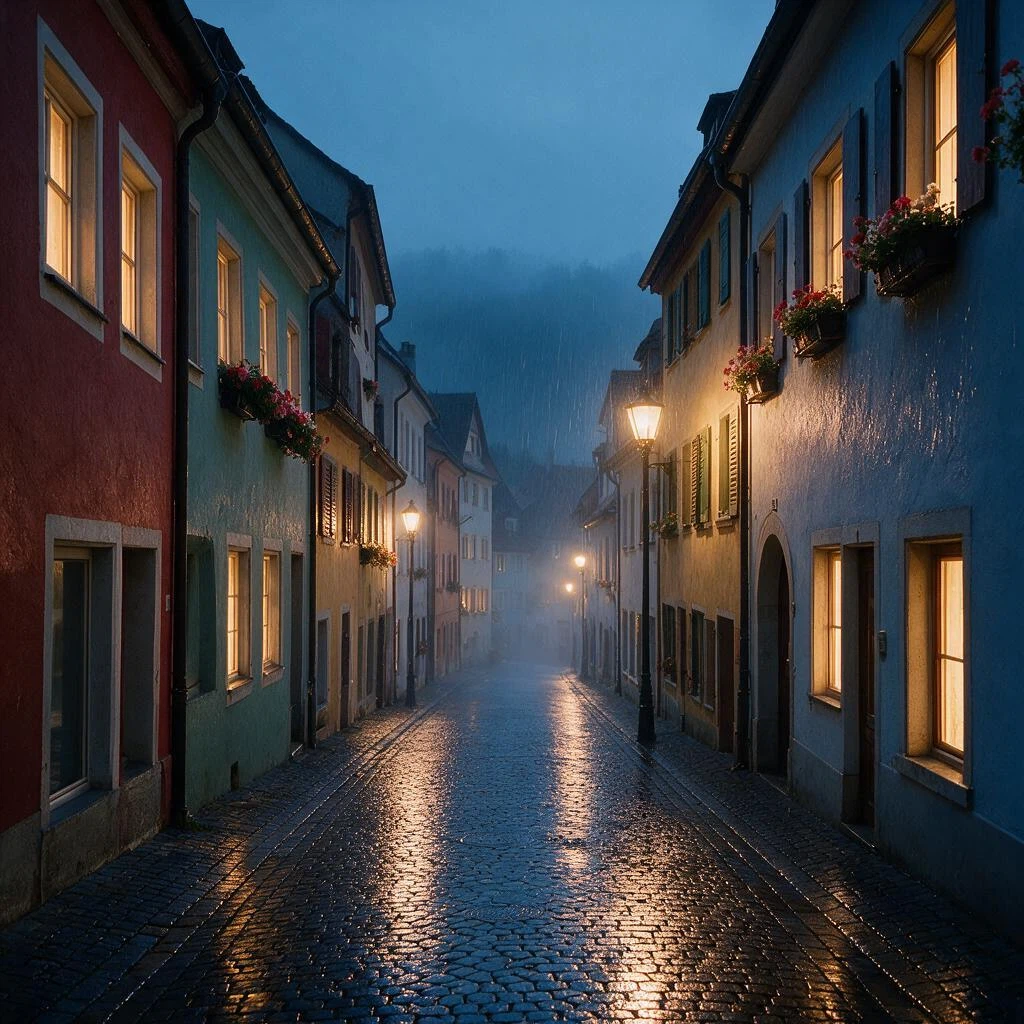
Image edit
1 modelsModels whose official task category is Image Editing.
View samples
Text to video
10 modelsModels whose official task category is Text to Video.
View samples
These are each model’s official samples, not a same-prompt benchmark. Prompts and parameters belong to the original source page; a same-prompt benchmark will be labeled once real API data is ready.
Prefer a full catalog?
Filter and compare every model by price, task and explicit capabilities.
FAQ
- What is the task gallery?
- It groups models by the official task they are built for: text to image, image editing, and text to video. Start with samples from the task you need, then compare price and explicit capabilities.
- Are these same-prompt comparisons?
- No. Each card shows official model samples, and prompts and parameters belong to the original source page. A same-prompt benchmark requires real API calls and will be labeled separately once the data is ready.
- How do I choose a model from a gallery?
- Check subject quality, material realism, text rendering and motion stability first. Then compare starting price, default resolution or duration, and only the capabilities the official documentation states.